Windows 11系统右键菜单恢复Windows 10计划
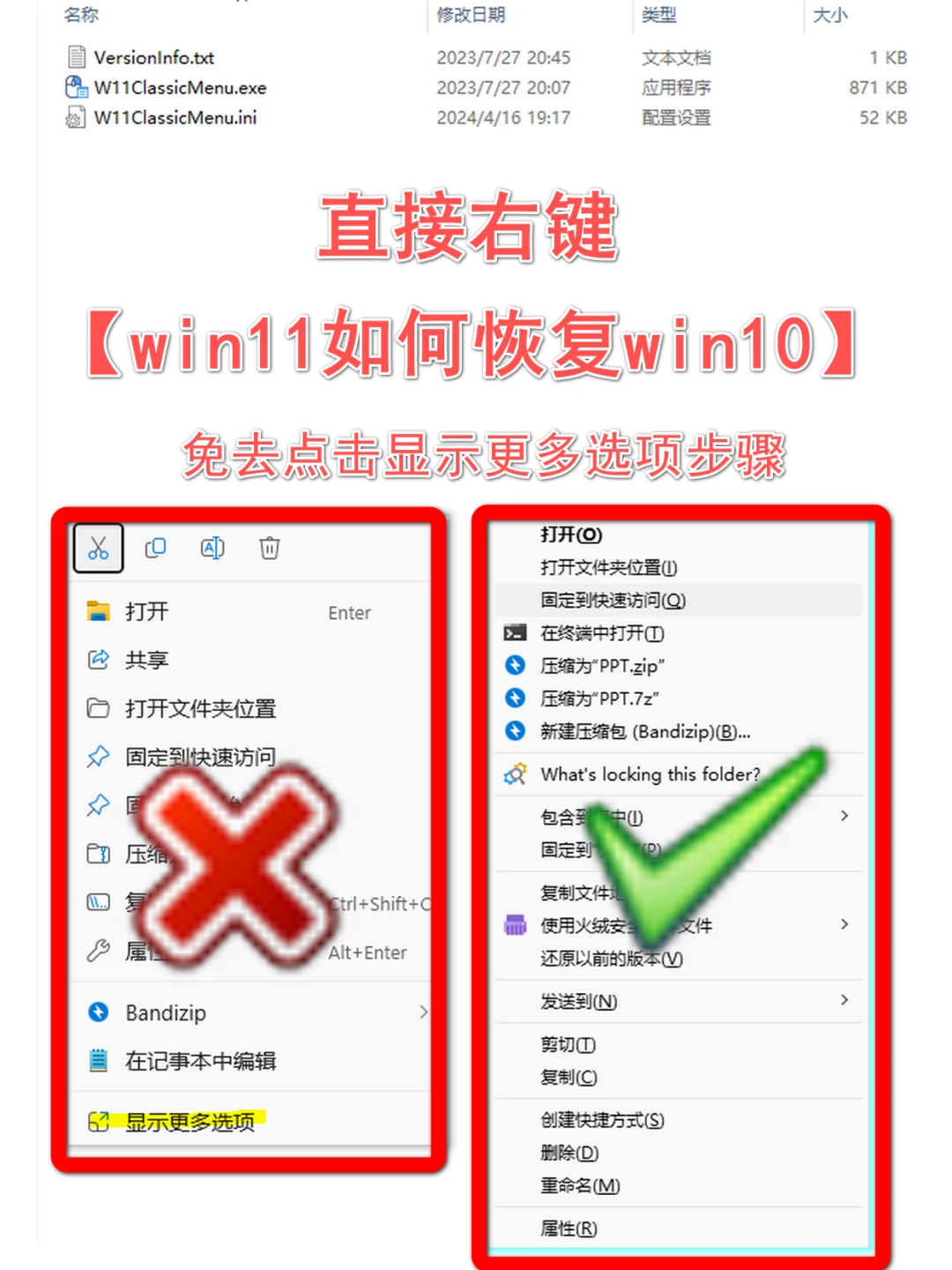
🕒更换使用Windows 11时,你们是否感觉右键菜单变得不那么顺手了呢?
🆚与Windows 10相比,每次点击右键,都要多按一个“显示更多选项”才能完成操作!
❓那如何将Windows 11右键菜单栏恢复至Windows 10右键菜单栏?
⚡️那不得不推荐右键恢复神器
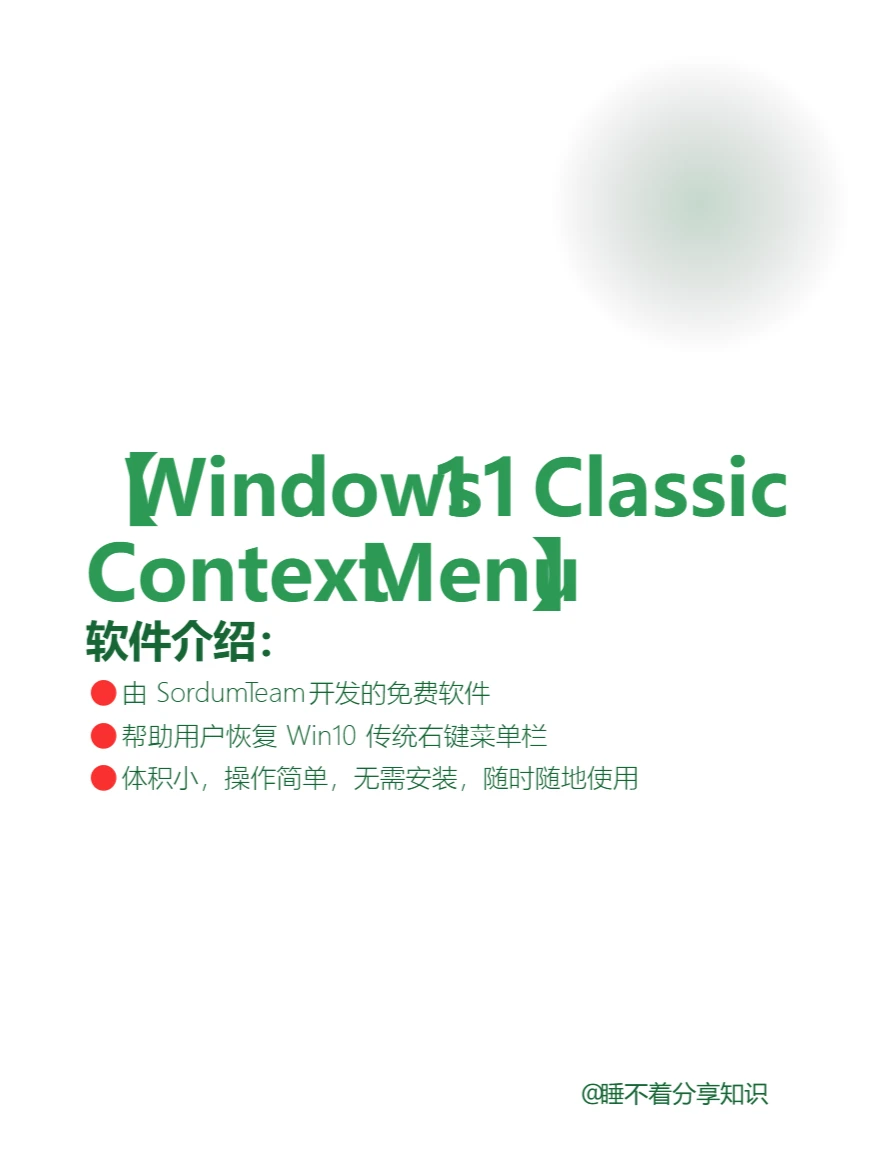
【Windows 11 Classic Context Menu v1.2】
1️⃣优点:体积占用极其小,1MB不到,操作简单,解压即用
2️⃣缺点:英文界面,可忽略不计
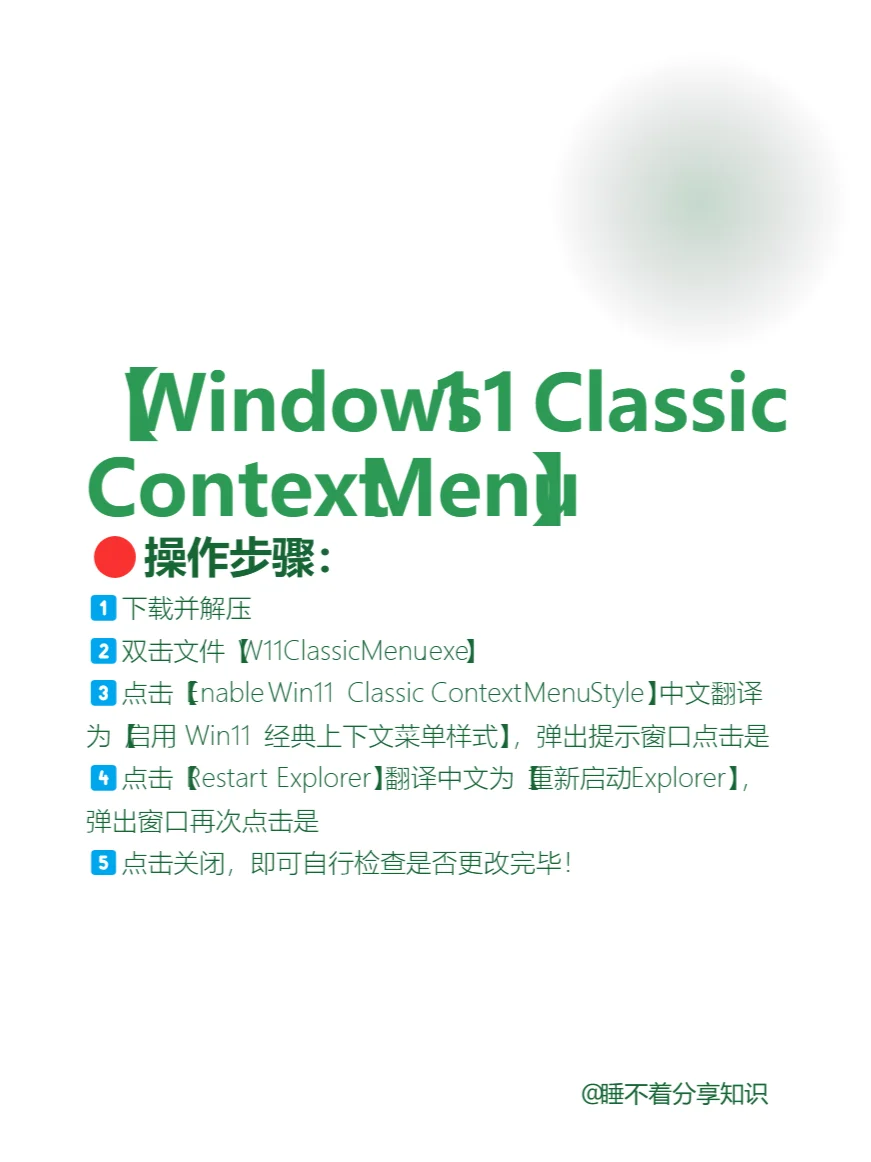
🔴操作步骤:
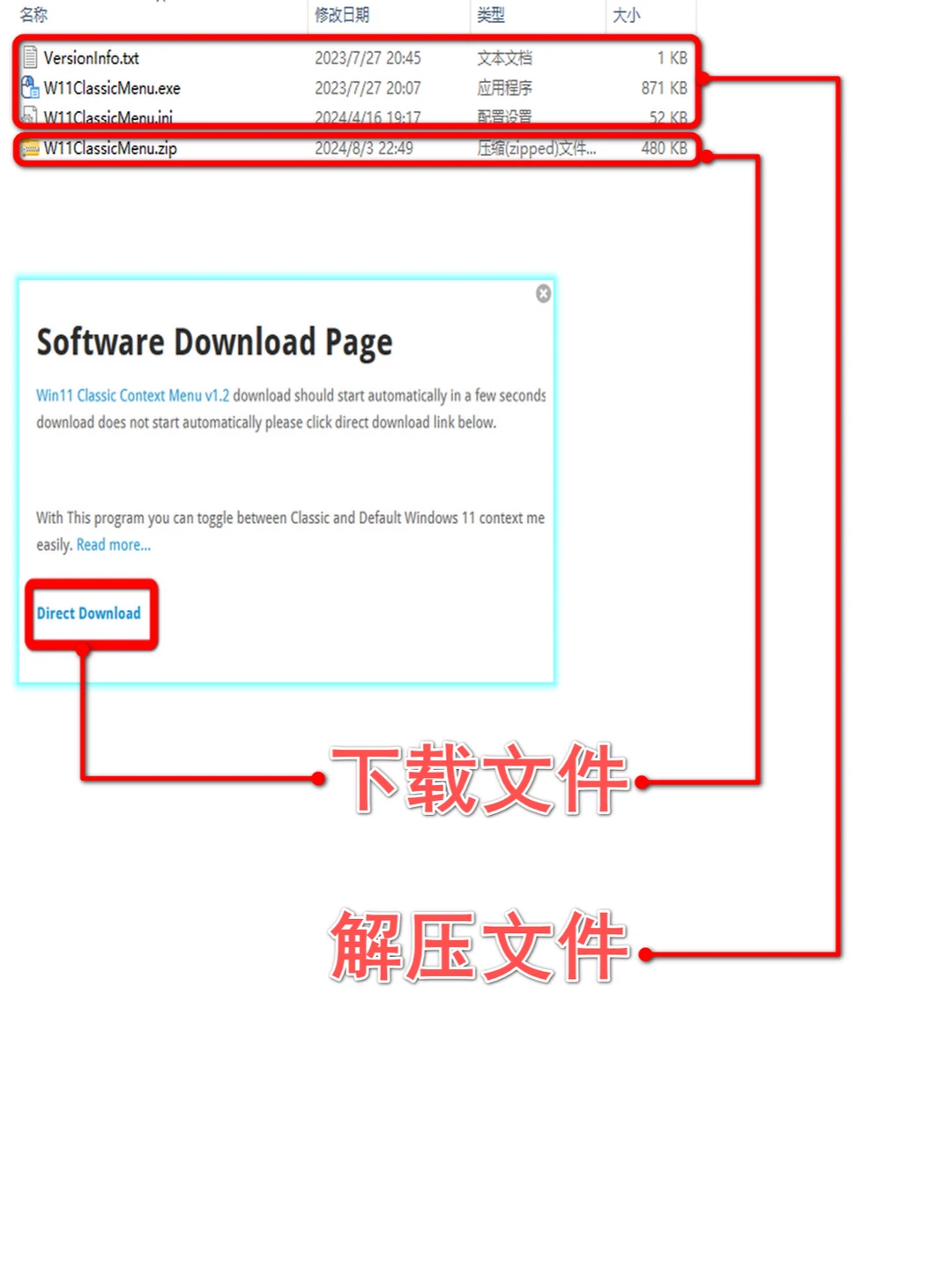
1️⃣下载并解压
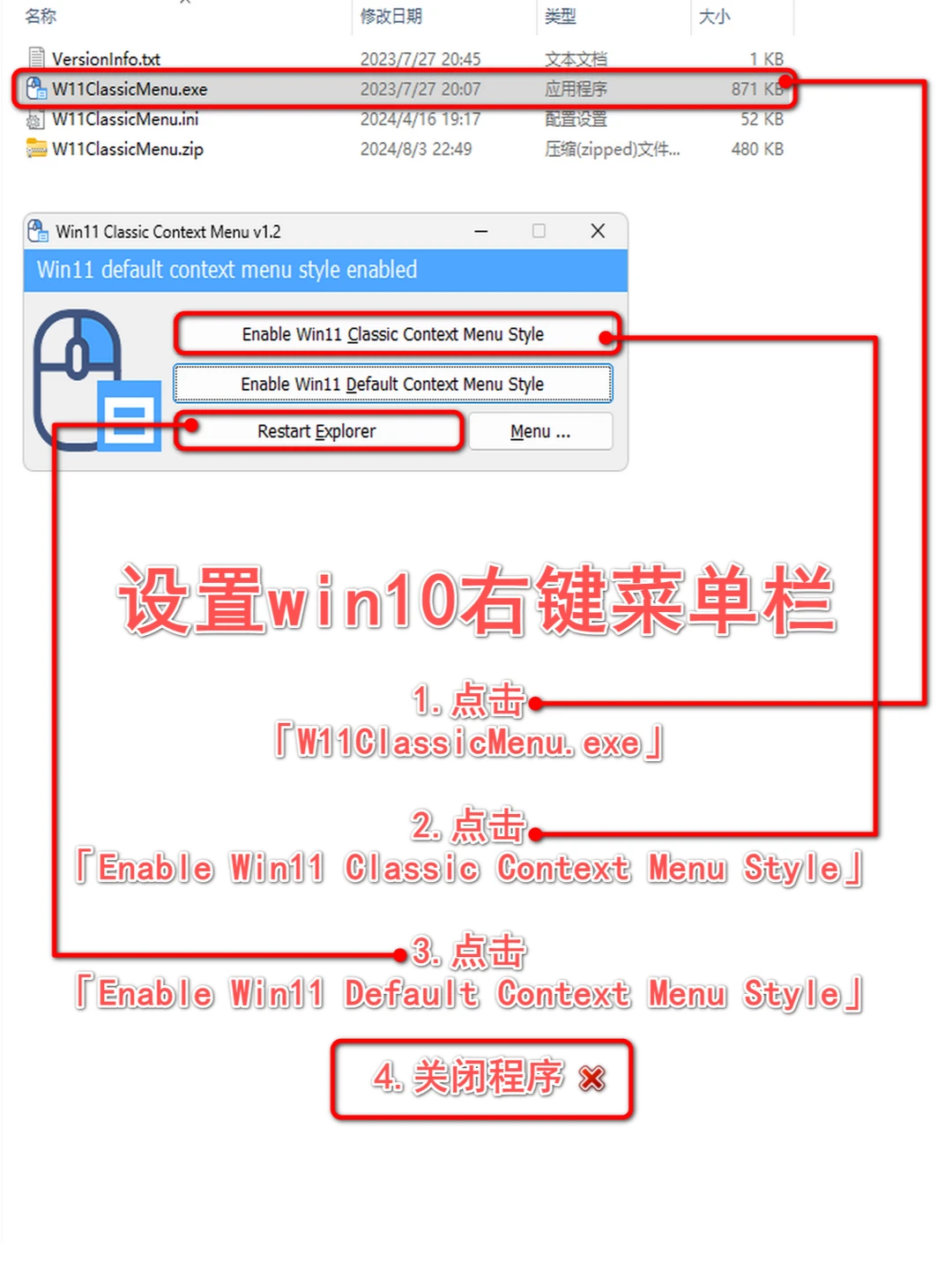
2️⃣双击文件【W11ClassicMenu.exe】
3️⃣点击【Enable Win11 Classic Context Menu Style】中文翻译为【启用 Win11 经典上下文菜单样式】,弹出提示窗口点击是
4️⃣点击【Restart Explorer】翻译中文为【重新启动Explorer】,弹出窗口再次点击是
5️⃣点击关闭,即可自行检查是否更改完毕!
💢哎呀睡不着,又想要恢复Windows 11右键菜单栏怎么办?
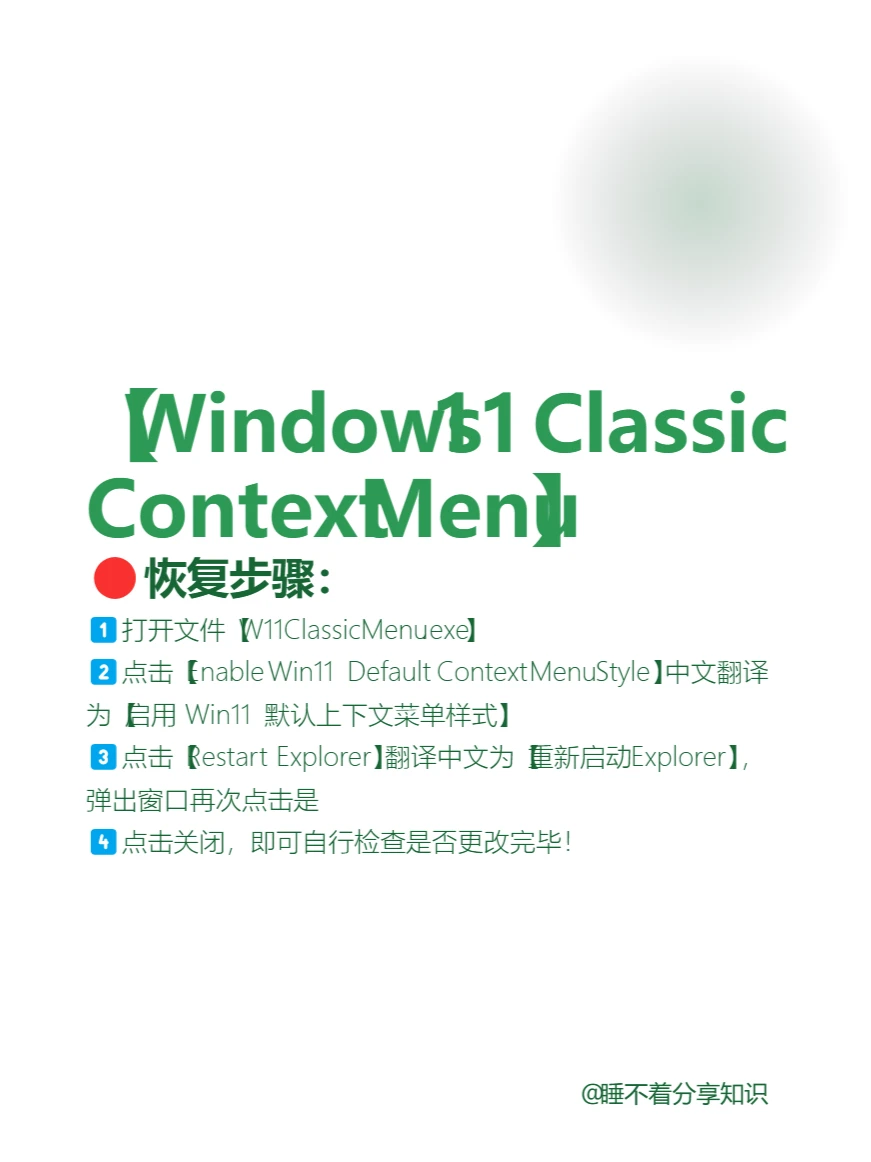
🔴操作步骤:
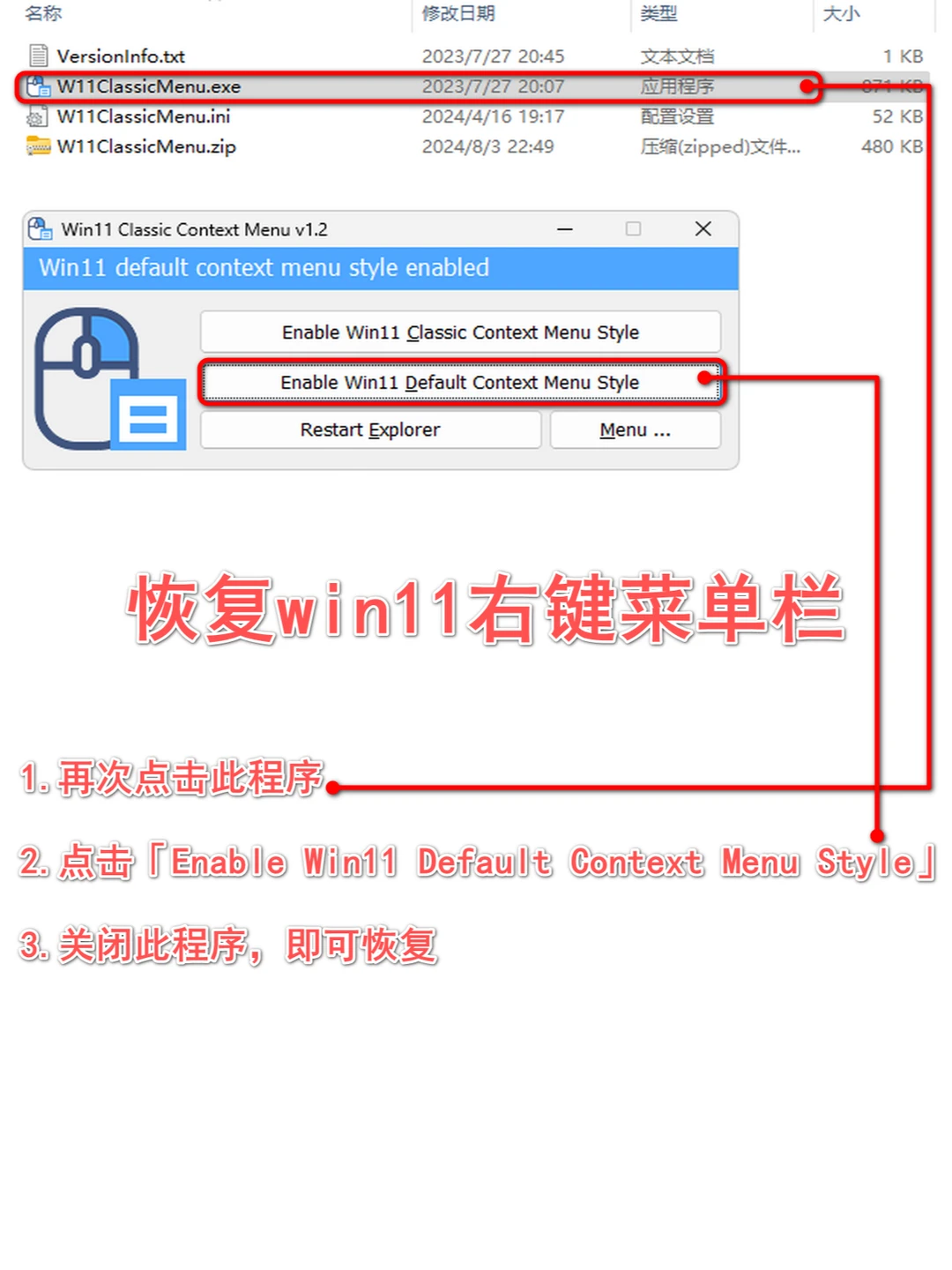
1️⃣打开文件【W11ClassicMenu.exe】
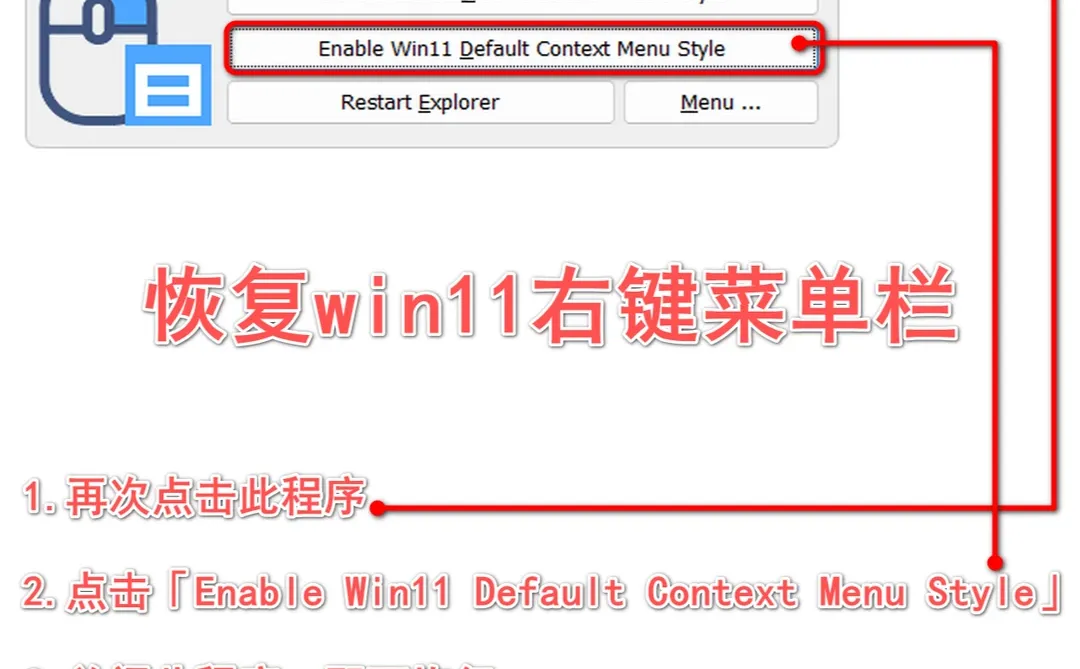
2️⃣点击【Enable Win11 Default Context Menu Style】中文翻译为【启用 Win11 默认上下文菜单样式】
3️⃣点击【Restart Explorer】翻译中文为【重新启动Explorer】,弹出窗口再次点击是
4️⃣点击关闭,即可自行检查是否更改完毕!
快来试试吧,让你的电脑操作更加顺滑,更符合你的操作习惯!
觉得分享不错点赞👍+关注❤️
🚄万粉目标冲冲冲💨💨💨